Bug hunting with tcpdump and Docker - dummy test #01
By Neosb
Published: 2025-02-25 02:54
Last Modified: 2025-02-25 20:45
Tags: testtutorialdockernetwork analysistmux
Categories: blogsecuritybughunting
Bug Hunting
My way of, I'm working on it...
Why?
When using Docker in bug hunting, it's much safer to incorporate usage of containers, because it creates additional layer between your system and tested apps. It's much like your virtual machine, but more reusable, less resource hungry, and easier to prove your findings.
Prepare for testing connection between Docker containers
- Create a Dockerfile and save as
Dockerfileusing VS Code:
Language: dockerfile
FROM fedora:latest

# Install the necessary packages

RUN dnf install -y curl wireshark-cli tcpdump tmux

RUN wget https://github.com/gcla/termshark/releases/download/v2.4.0/termshark_2.4.0_linux_arm64.tar.gz && \

tar -xvf termshark_2.4.0_linux_arm64.tar.gz && \

mv termshark_2.4.0_linux_arm64/termshark /usr/local/bin/ && \

rm -rf termshark_2.4.0_linux_arm64.tar.gz termshark_2.4.0_linux_arm64

# Run the command
CMD ["bash"]
Now in your system's terminal application from the
Dockerfiledirectory run below commands
- Create a network for containers
Language: bash
docker network create my-network
- Build above image
Language: bash
docker build --tag test-if-connection-ok .
- Run container
Language: bash
docker run -it --network my-network test-if-connection-ok
- Run the test
nginxhttp server
Language: bash
docker run --rm -p 8080:80 --network my-network --name webserver nginx:latest
This command run an nginx instance from hub.docker.com mapping your localhost port 8080 to container's 80 port - HTTP (port 443 is for HTTPS, but to show content of the website in terminal we will use HTTP, HTTPS is encrypted and harder to illustrate)
Fun part - capturing network packets
If you're here to watch:
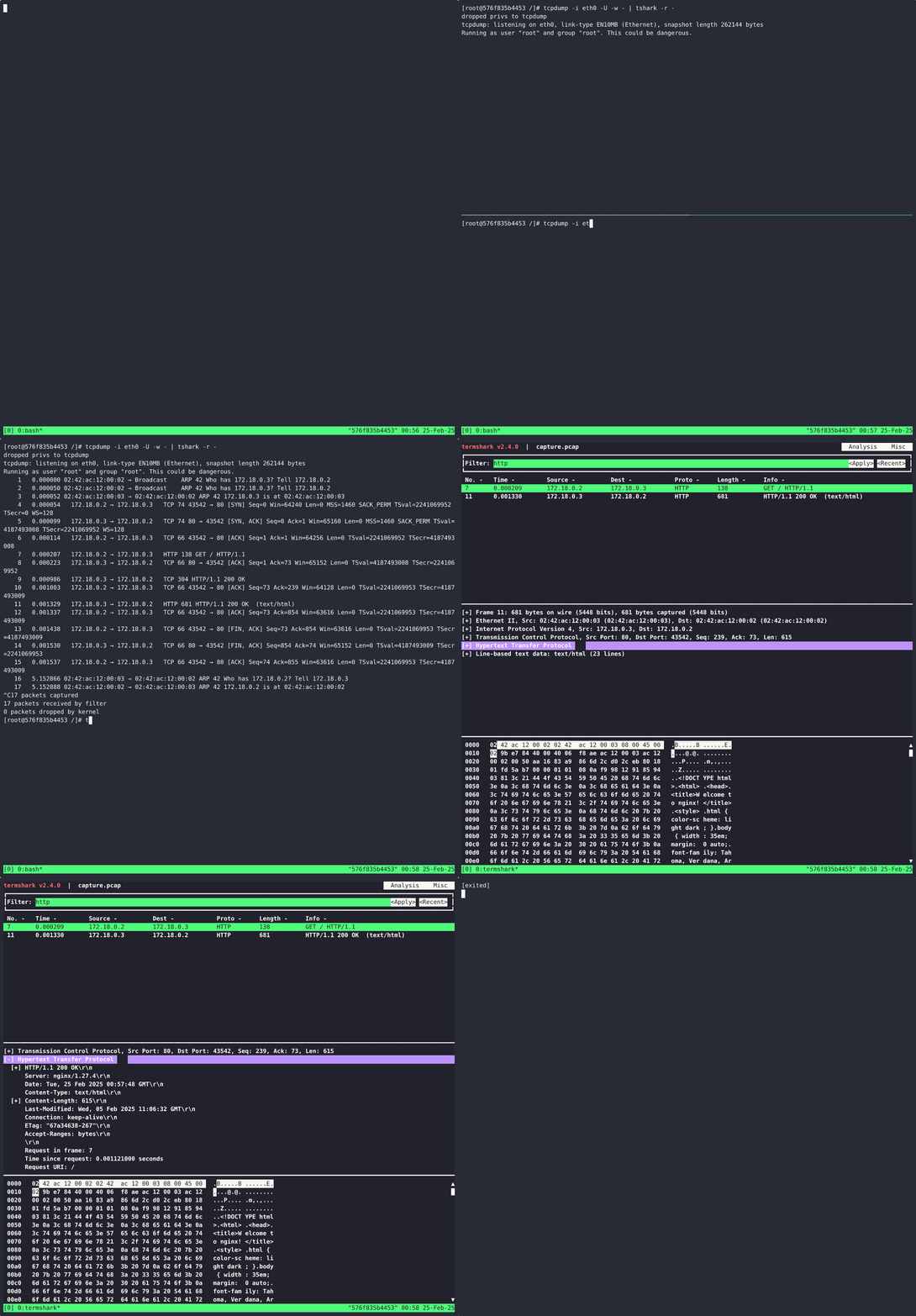
If you're here to try it out:
- In client container
test-if-connection-okopen new tmux session withtmux newand maybe useterminalizer record demobefore... - Split workspace with
<CTRL>+<b> and <">choose your desired pane by typing<CTRL>+<b> and <UP>/<DOWN>/<LEFT>/<RIGHT> - Issue packet capture command:
Language: bash
tcpdump -i eth0 -w capture.pcap
- In another pane of tmux session in your client container use curl to connect to webserver
Language: bash
curl webserver
- You should already see a result
- Switch back to packet capturing pane and stop it by using
<CTRL>+<c> - Run Termshark to inspect web traffic
Language: bash
termshark -r capture.pcap
- Press
<q>to exit, and then<CTRL>+<&>to exit tmux session. - Now you can type
exitto shut down container gracefully - Don't forget to shut down nginx server. It will be removed due to
--rmflag, client container is saved in Docker, add--rmafterdocker runto also remove it after shut down, from Docker desktop app, or using command linedockercommand.
Conclusion
We have used Docker, nginx, fedora, curl, tcpdump, tshark and termshark to check if network connection works in between docker containers. Usage of Docker network allow us to connect to containers in a DNS resolution way translating IP addresses to human readable names. We have captured all HTTP packets and even some more. You can inspect them using docker exec -it container_name/id termshark -r capture.pcap
This way we created a security layer making our system safe from accidentally changing it's content and now we should be prepared to start our bug hunting journey...
P.S.
If you would like to record your Terminal, please use either:
You can install asciinema in your container (when using fedora:latest RUN dnf install -y asciinema), and use agg from Docker to export recording to GIF
I have encountered an issue that when using tmux, and asciinema rec -i 1.5 -c "tmux new" my-recording (which records after the tmux command) my screencast had less columns... To fix this, just edit the screencast file and change "width": 123 to your desired output.
How to get screencast from container?
Language: bash
docker cp container_name_or_id:/absolute_path_to_file_in_container output_location_on_your_machine